Rust Paint
A downloadable tool for Windows
Kavrynto - main developer (support me on Boosty https://boosty.to/kavrynto)
https://github.com/DevOfTheFour - co-developer
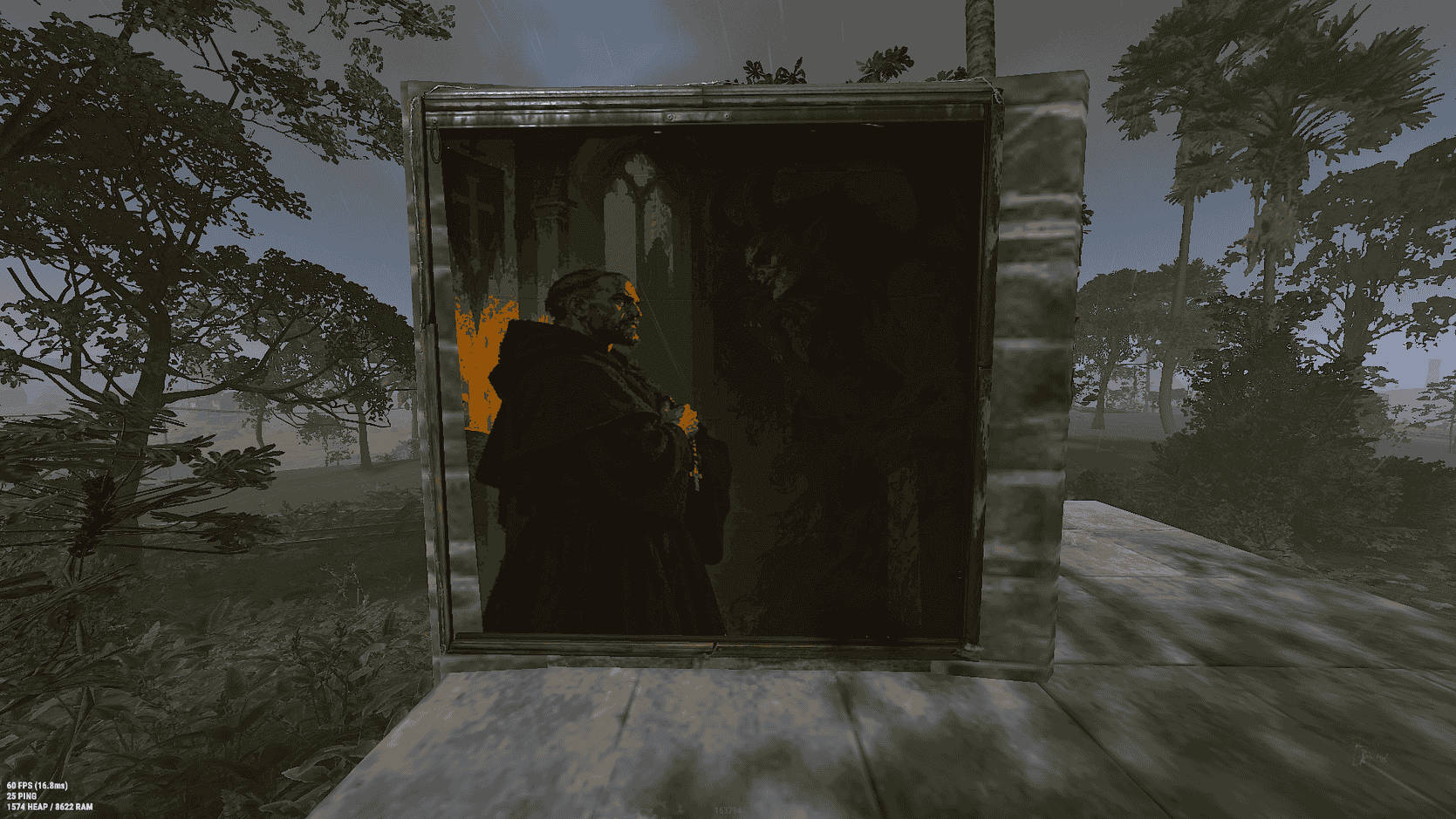
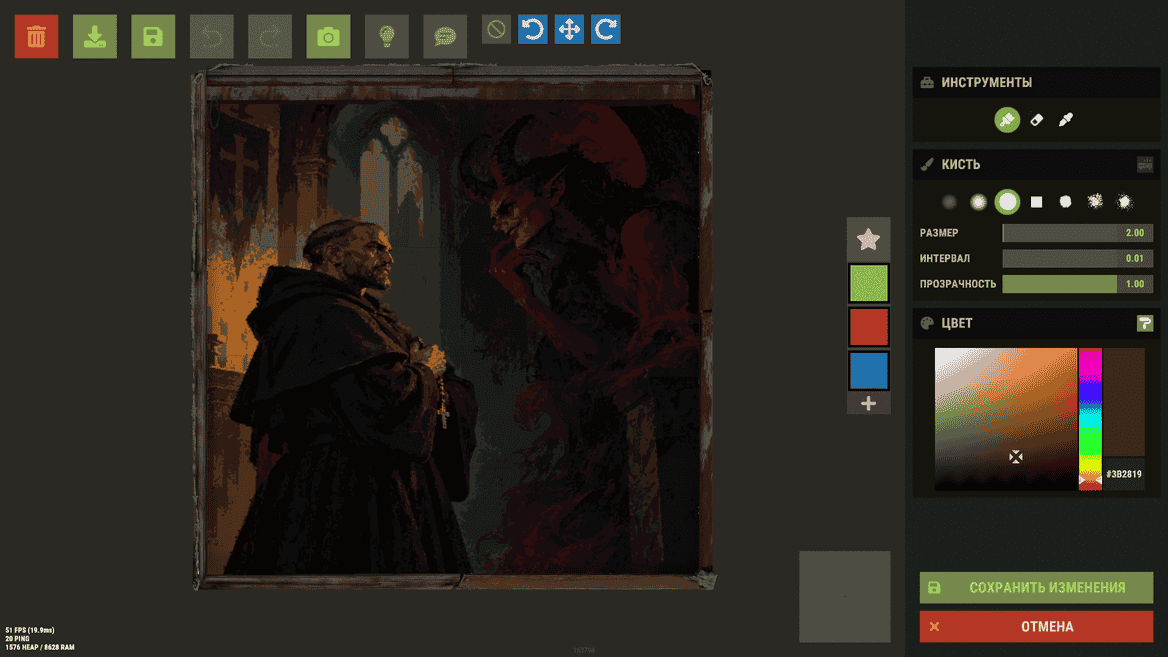
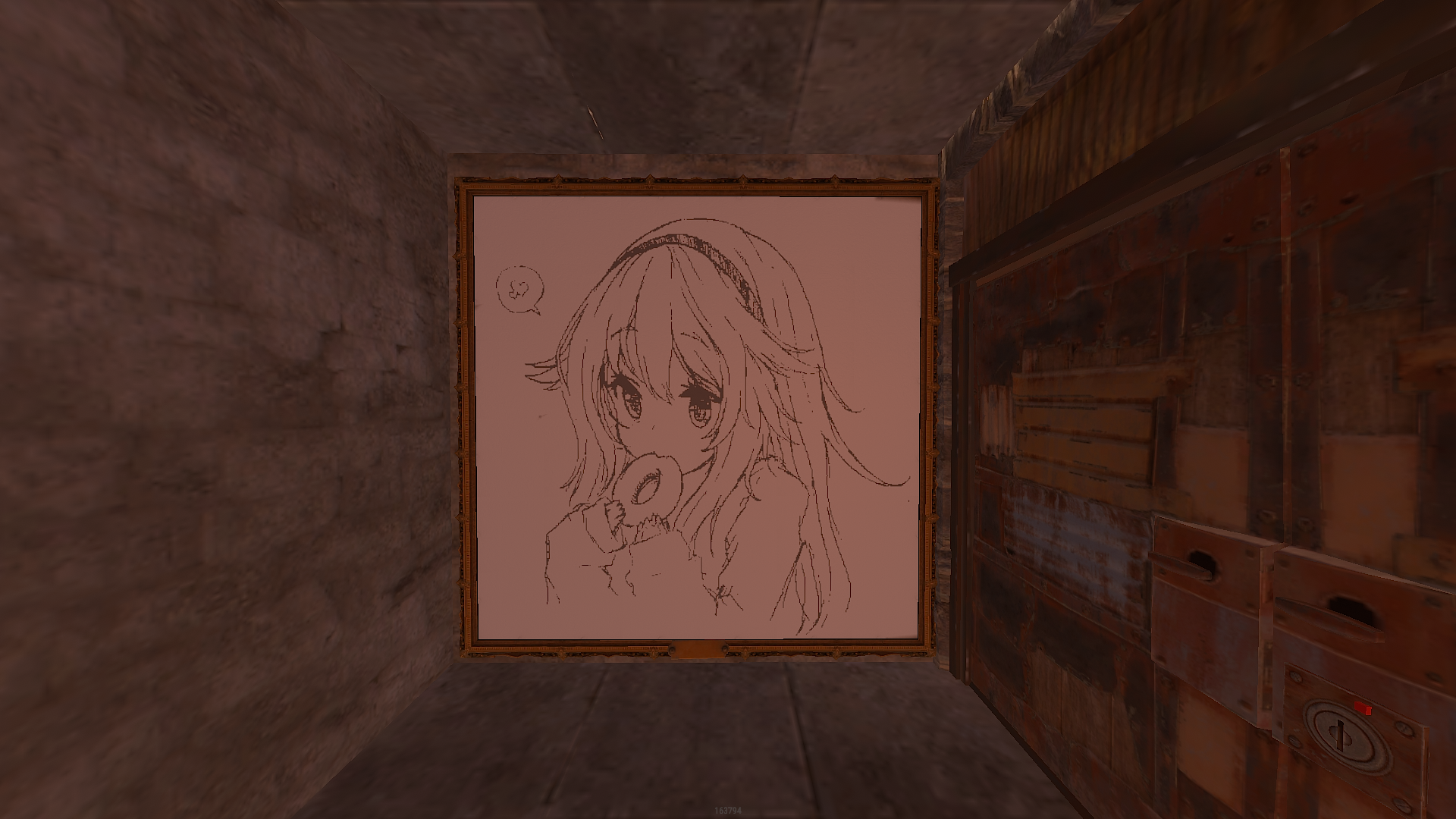
Rust Paint is a program for automatically transferring images onto canvases in Rust.
The idea is simple. You load an image, select where the canvas and HEX color field are located, then the program prepares the image and starts drawing it automatically.
I made this mainly because drawing large images manually in Rust can be pretty painful, especially when there are a lot of colors and small details.
The program does not just click every pixel one by one. It processes the image first, groups colors, can reduce the palette, and tries to combine nearby pixels into horizontal lines so the drawing takes less time.
What the program can do
Rust Paint already has quite a few features.
You can load images in these formats:
- PNG
- JPG
- JPEG
- BMP
- GIF
- WebP
You can also paste a direct image link and the program will download it for you.
A history of recently loaded URLs is saved. You can reopen an image, copy its URL, or remove it from the history.
Working with images
After loading an image, it is processed to fit the selected canvas size.
You can enable aspect ratio preservation so the image does not simply stretch across the entire area.
If aspect ratio preservation is disabled, the image will be resized to fully match the selected dimensions.
The program also shows some statistics:
- image size
- total pixel count
- amount of pixels that actually need to be drawn
- amount of transparent pixels
- number of colors
- number of lines
- number of color groups
Before starting, you can preview what the processed image will roughly look like.
Colors
One of the problems with automatic drawing is that an image can contain a huge amount of slightly different colors.
Because of that, Rust Paint has color grouping.
If you increase the grouping value, similar shades will be merged together.
For example, instead of dozens of almost identical gray colors, only a few may remain.
This reduces the amount of HEX color switching and usually speeds up the drawing process.
You can also limit the palette size.
For example, you can keep a maximum of:
- 16 colors
- 32 colors
- 64 colors
- 128 colors
- up to 256 colors
It depends on how important image accuracy is for you.
Fewer colors usually means faster drawing, but the image may lose some detail.
Transparency
Transparent pixels are simply skipped.
So if your image has a transparent background, Rust Paint will not try to paint it.
Drawing area
The program needs to know where the canvas is located.
You can enter the area manually using:
- X
- Y
- width
- height
Or you can simply select the required area directly on the screen with your mouse.
This is much easier if you do not want to manually search for coordinates.
HEX field
You also need to specify where the HEX color input field is located in Rust.
Rust Paint uses it to switch colors before drawing the next color group.
The HEX field area can also be selected directly on the screen.
It is better to select only the actual HEX input field instead of the entire color panel.
Line drawing
In the normal mode, Rust Paint tries not to click every pixel separately.
If several pixels of the same color are next to each other, they are combined into a horizontal line.
The program basically does this:
- selects the required color
- moves the mouse to the beginning of the line
- holds the mouse button
- moves across the line
- releases the button
- continues with the next line
For larger images, this can make the process much faster.
Pixel by pixel mode
There is also a mode where every pixel is drawn with a separate click.
It is much slower, but sometimes it can be more reliable, especially if line drawing is unstable for some reason.
Main drawing and recovery can be configured separately.
For example, the main image can be drawn using lines, while recovery uses individual pixels.
Speed
There are several ready-made speed profiles.
Fast
Prioritizes speed and uses lower delays.
Useful if Rust is handling input without problems.
Balanced
The normal mode.
I would recommend starting with this one.
Precise
Uses higher delays, which lowers the chance of the game missing input.
Custom
Lets you configure everything manually.
Manual speed settings
You can change several delay values separately:
- delay between strokes
- click duration
- mouse movement delay
- delay after changing color
This is useful because everyone has different FPS, different hardware, and the game itself may react differently to very fast input.
If Rust starts missing lines, usually increasing the delay a little is enough.
Speed test
There is a built-in speed test.
It draws several test lines and helps you find a suitable delay.
Before running the test, you should open an empty canvas and select a working brush with a visible color.
After starting the test, you get a few seconds to switch back to Rust.
The program checks several speed values and you can then use the confirmed result.
The test lines need to be removed manually afterwards.
Changing speed while drawing
You do not need to stop everything just to slightly change the speed.
By default:
I - increase the delay
O - decrease the delay
So if you notice missing pixels or broken lines, you can slow the program down while it is still working.
Hotkeys
Rust Paint supports global hotkeys.
By default:
- P - pause / continue
- I - increase delay
- O - decrease delay
- U - show or hide the progress window
- Y - skip the current color
All keys can be changed in the settings.
The program also checks that the same key is not accidentally assigned to multiple actions.
Pause
There is a normal pause and continue function.
You can also enable starting directly in a paused state.
I recommend using it this way.
For example:
- press Start
- the program does not draw anything yet
- switch back to Rust
- check that the correct canvas is open
- press the continue hotkey
This is much safer than letting the program start moving your mouse immediately after pressing Start.
Progress
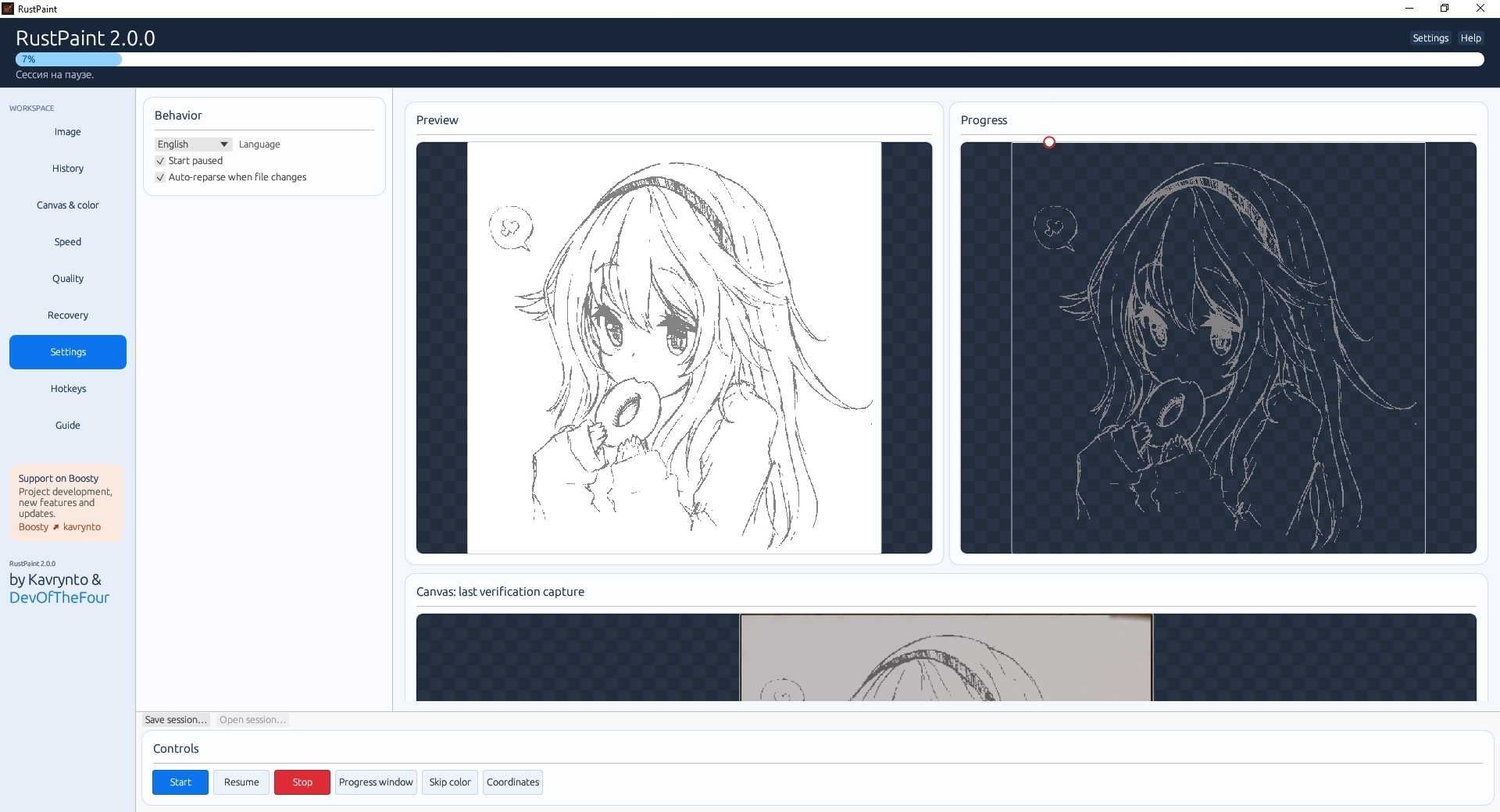
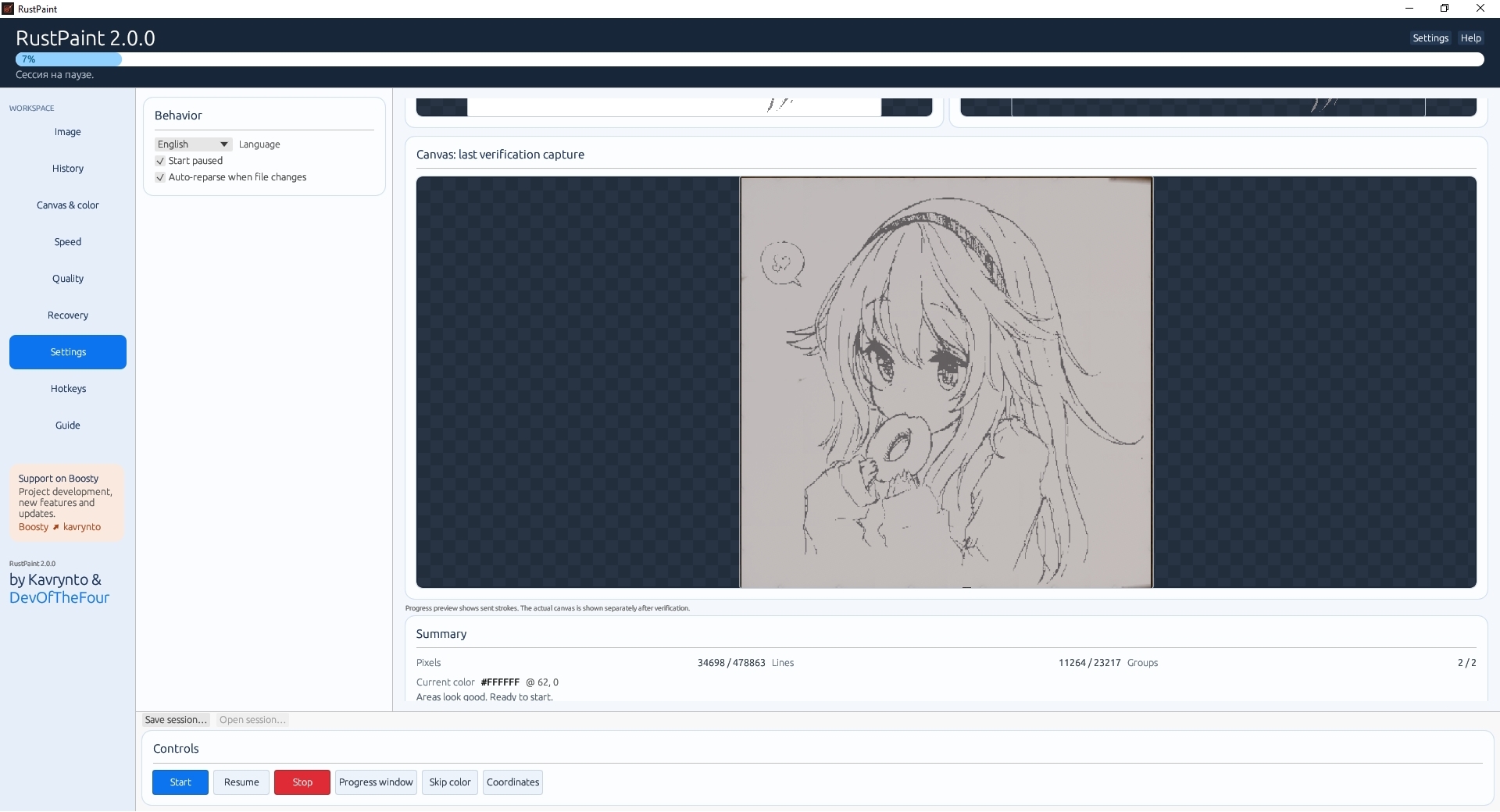
While drawing, you can see:
- how many pixels are already done
- how many pixels remain
- how many lines are completed
- current color
- current position
- number of processed colors
- current program state
There is also a separate small progress window.
It is useful if you do not want the main Rust Paint window taking up too much space.
Log
There is a log at the bottom of the program.
It shows what the program is currently doing, errors, coordinates, download status, drawing status, recovery status, and other useful information.
If something goes wrong, checking the log is usually the first thing you should do.
Image verification
After drawing, Rust Paint can check what actually ended up on the canvas.
The program takes a screenshot of the drawing area and compares it with what should have been drawn.
This allows it to find:
- missing pixels
- incorrect areas
- extra strokes
You should keep in mind that Rust can visually change colors because of lighting.
Because of this, there is an RGB tolerance setting.
If the tolerance is too low, the program may consider a perfectly fine pixel incorrect.
Recovery
After verification, you can run automatic recovery.
The program finds problematic areas and redraws only those parts.
You do not need to redraw the entire image from scratch.
You can choose from 1 to 5 recovery passes.
After each pass, the image is checked again.
If the amount of errors stops decreasing, the program can stop further attempts.
Recovery modes
There are several options:
- Fast
- Balanced
- Precise
- Maximum Quality
More precise modes usually take longer to verify and fix the image.
Extra strokes
The program can detect not only missing pixels, but also extra strokes.
Before drawing, Rust Paint can save the original state of the canvas.
If an unwanted stroke appears later, the program can use the saved background to try to restore that area.
This is not a real Rust eraser.
The program simply tries to return that area to what was there before.
Separate recovery speed
Recovery can use completely different speed settings.
For example:
the main image can be drawn quickly using lines,
while recovery can run slowly and pixel by pixel.
This is useful because there is no reason to draw the whole image at maximum precision just because a few pixels may need fixing later.
Pause before recovery
You can enable a pause before recovery starts.
After the main drawing pass is finished, the program stops and lets you check the result yourself.
Then you can continue and allow automatic recovery.
Saving sessions
Rust Paint can save your work into a file with the extension:
.rpsession
A session stores more than just the image path.
It saves most of the information required to continue:
- image
- settings
- canvas area
- HEX field
- prepared drawing plan
- colors
- lines
- current progress
- completed pixels
- completed lines
- saved background
- recovery settings
Because of this, after loading a session, the original image file does not necessarily need to still exist on your disk.
Continuing saved work
After loading a saved session, make sure everything in Rust is still in roughly the same place:
- the same canvas is open
- the window has not moved
- the scale has not changed
- the HEX field is still in the same position
After that, you can continue drawing.
Parts that were already completed should not be drawn again.
Manual saving
There is currently no automatic session saving.
You need to save the session manually using the save button.
If the program or your computer closes before the latest save, some progress can be lost.
For large images, it is better to save the session from time to time.
Session protection
Before loading an .rpsession file, Rust Paint checks it.
It validates things such as:
- version
- format
- data size
- progress
- lines
- image
- screen areas
- checksum
If the file is damaged, the program should not simply load it as a normal session.
The current maximum session file size is 256 MB.
Automatic image rebuild
There is a feature that watches the original image file for changes.
For example, you can open your image in Photoshop, Krita, or another editor, change something, and save it.
Rust Paint can notice that the file changed and automatically process it again.
This is useful if you are constantly editing the source image.
Protection against drawing in the wrong place
While working, the program checks the state of the target window.
If Rust loses focus or the required area is covered by another window, input can be stopped.
This is done so the program does not accidentally start drawing or typing inside another application.
Still, it is better not to touch the game window while Rust Paint is drawing.
Settings
Main settings are saved between program launches.
This includes things like:
- speed
- selected profile
- hotkeys
- language
- selected screen areas
- recovery settings
- URL history
- quality settings
On Windows, the config is stored approximately here:
%APPDATA%\RustPaint\rustpaint.properties
Languages
The interface currently supports:
- Russian
- English
You can change the language in the settings.
If you find some text that is only available in one language, it is probably just unfinished localization, so feel free to report it.
Tabs
The program is currently divided into sections like these:
Image
Loading images, URLs, processing, and starting the drawing.
History
Recently loaded images from URLs.
Canvas and Color
Drawing area and HEX field configuration.
Speed
Profiles, delays, and speed testing.
Quality
Palette settings, color grouping, and drawing mode.
Recovery
Canvas verification and error correction.
Settings
General program settings.
Hotkeys
Global keyboard shortcuts.
Help
Basic information, usage tips, and common problems.
Important things to know
Rust Paint works by controlling your mouse and keyboard.
Because of this, while it is drawing, it is better not to:
- move the Rust window
- resize the window
- change the scale
- move the canvas
- open other windows over the game
- move the mouse without a reason
If the coordinates change, the program may start drawing in the wrong place.
Image verification also works through screenshots instead of reading data directly from the game.
Because of that, lighting, visual filters, and other effects can slightly change the comparison result.
The project is still in development
I do not consider Rust Paint fully finished yet.
There may still be:
- bugs
- strange behavior
- problems with certain resolutions
- localization mistakes
- missing strokes
- unstable behavior in some features
If you find a problem, please report it.
It helps a lot if you can include:
- a screenshot
- a video
- the original image
- the session file
- log messages
The more information there is, the easier it is to understand what went wrong.
Ideas and suggestions
If you feel like something is missing, you can suggest it.
I read suggestions, but I cannot promise that absolutely everything will be added.
I do not want the program to turn into a mess of hundreds of features that nobody actually uses.
If an idea is genuinely useful, there is a good chance it may appear in a future version.
Support the project
If you want to support Rust Paint development:
It is completely optional.
Simply using the program, reporting bugs, and leaving useful feedback also helps a lot.
Developers
Kavrynto - main developer.
Boosty:
DevOfTheFour - co-developer.
GitHub:
https://github.com/DevOfTheFour
The idea behind Rust Paint is pretty simple.
Load an image, configure the area, choose the speed and quality, press Start, and then just keep an eye on whether Rust is accepting the input correctly.
If the game misses something, the program can check the result afterwards and try to fix it.
The project will keep getting updates, so some things will definitely change over time.
Download
Development log
- The upcoming update1 day ago
Leave a comment
Log in with itch.io to leave a comment.